Can an iPhone be an SMS gateway? The honest answer
Apple lets no app send a text by itself, so here's what works, what doesn't, and where a Mac comes in.
Sparetext
5 min read · Oct 31, 2026
Apple lets an iPhone app do a lot. Sending a text without you pressing Send isn't on the list, and no clever code changes that.
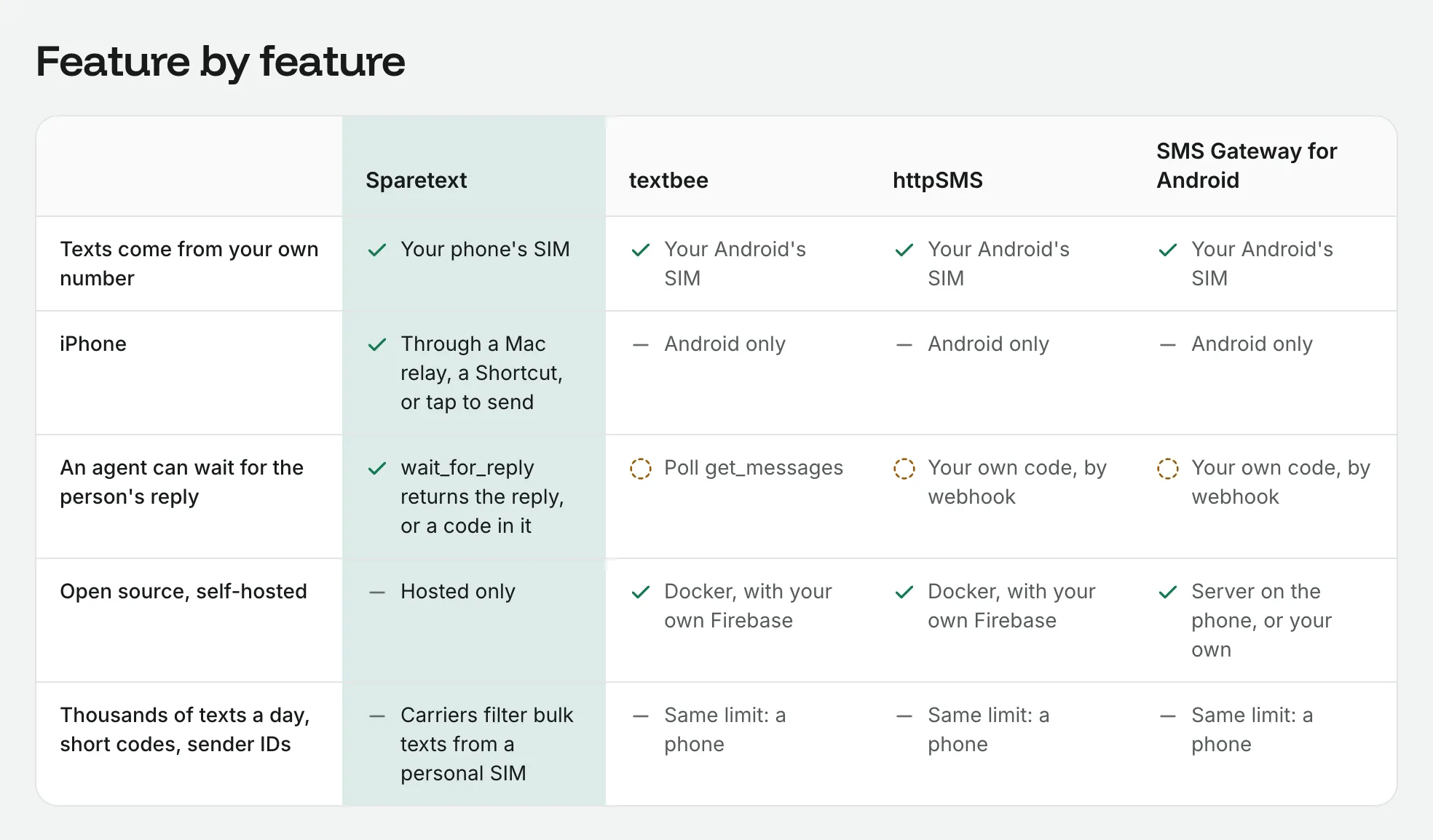
That's why the other SMS gateway apps we compare ourselves with are all Android only. We wanted the iPhone anyway, so Sparetext uses every path Apple does allow. Here's the honest version: what an iPhone SMS gateway can do, what it can't, and which setup to pick.
Why an iPhone app can't just send
On Android, an app with the SMS permission can hand a text to the radio in the background. iOS gives apps nothing like it. An app can fill in a text for you, but it can't press Send, and it can't read the texts that arrive.
From Apple's side that makes sense: an app that texts silently could text anyone, from your number, on your bill. So in every path below, Apple's own Messages or Shortcuts does the sending, with your say-so.
We don't fight iOS. We use what it allows: a tap, a shortcut, an automation, and a Mac.
Tap to send: any iPhone, no setup
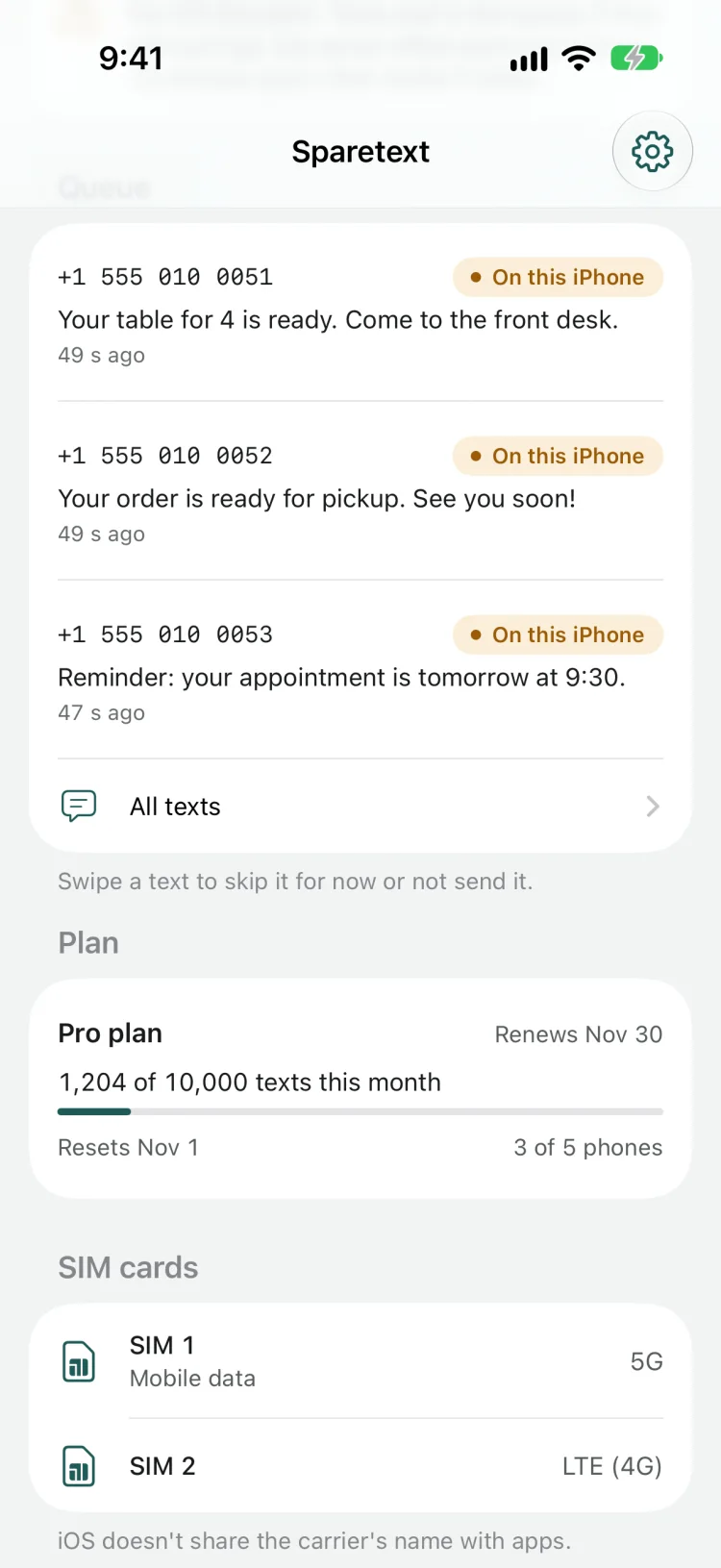
The app opens each waiting text in the usual Messages sheet, with the number and the words filled in, and you tap Send. Nothing goes out without you. It suits your everyday iPhone and a few texts a day. For a hundred, your thumb will have opinions.
Shortcut auto-send: automatic while the app is open
Apple's Shortcuts app can send a message without showing anything, once you've allowed it. So the app hands each batch of texts to a shortcut called Sparetext Send, which sends them with the Send Message action and comes back to the app.
The first time it runs, iOS asks whether the shortcut may send messages. Choose Always Allow, or every batch waits for you. The app keeps the screen on while it waits, since iOS freezes apps on a locked phone. So this one is for a spare iPhone on a charger, sitting on a shelf with nothing better to do.
Send while locked: an email wakes it up
A locked iPhone freezes the app, but Shortcuts automations still run, and Email is one of the triggers Apple lets run without asking. So the phone can ask to be woken by email.
The app gives you a subject like "Sparetext wake K7Q4". You make an automation: when an email with that subject arrives, run the Sparetext Auto Send shortcut, which picks up waiting texts, sends them, and tells Sparetext they went. Turn on Allow Running When Locked for that shortcut.
When texts are waiting for that phone, we send one short email. It holds no numbers and no text, comes at most once a minute and 100 times a day, and never while the app is open. Use your iCloud address: iCloud pushes mail at once, while Gmail in Apple's Mail app is fetched every 15 minutes or more.
Then tap Send a test in the app and lock the phone. When you come back, it tells you whether the automation ran, and you know your setup works before a customer finds out it doesn't.
The Mac: the fully automatic one
This is the path we'd pick. Your iPhone can already pass its texts to a Mac: that's Text Message Forwarding, under Settings › Apps › Messages on the iPhone. With it on, Messages on a Mac signed in to the same Apple Account sends and receives SMS through the iPhone's number.
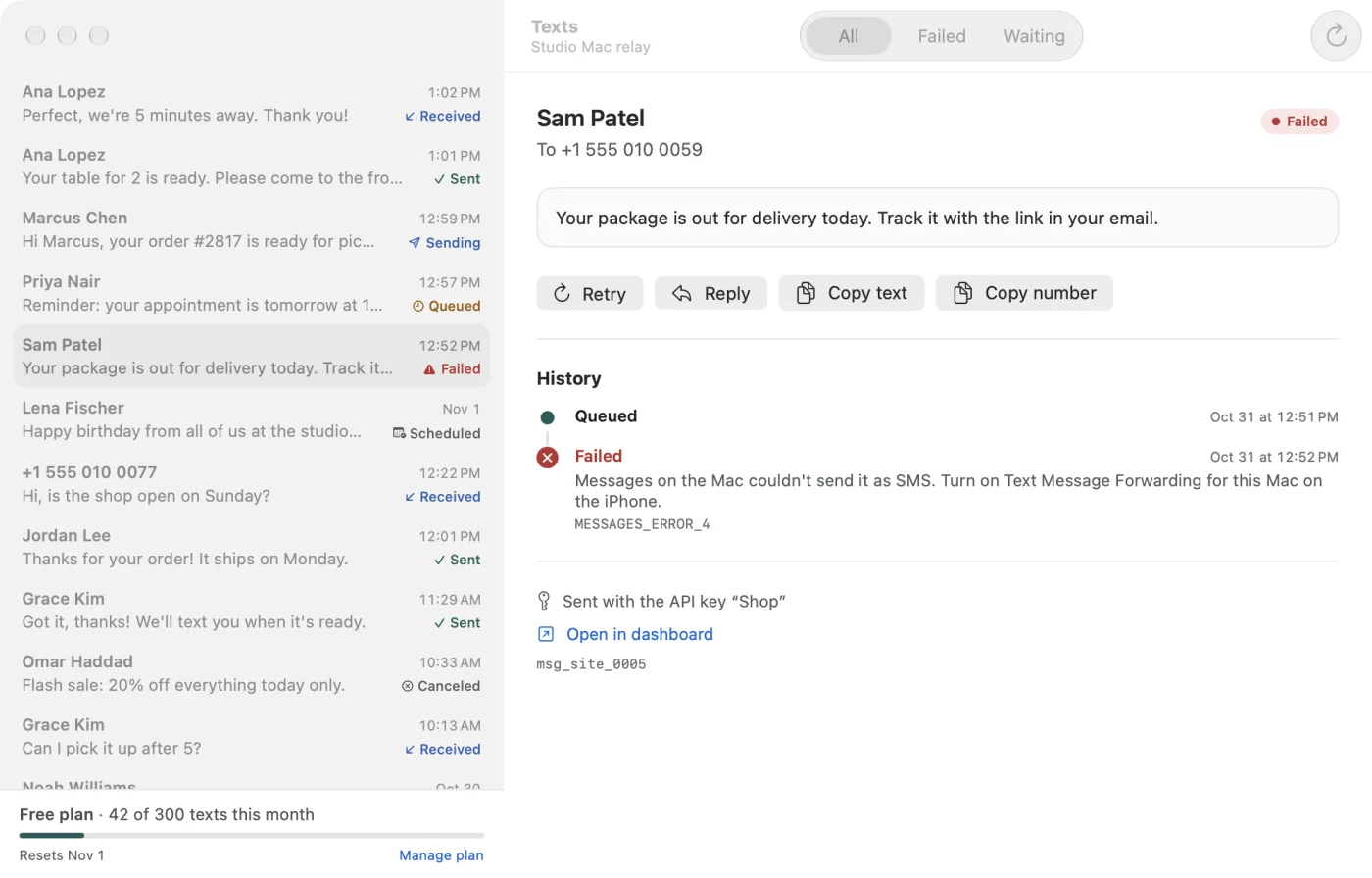
Sparetext for Mac is a small menu-bar app that sends your queued texts through Messages, so they leave from the iPhone's own number. Then it checks Messages' own database to confirm each one went out, reads the error when one didn't, and picks up every reply.
No taps, no screen kept on, and pictures work too. It needs Full Disk Access to read replies, and it asks once to use Messages. The Mac has to be awake and signed in to Messages, and the iPhone switched on with a connection. Texts queued while the Mac sleeps wait and go out when it's back.
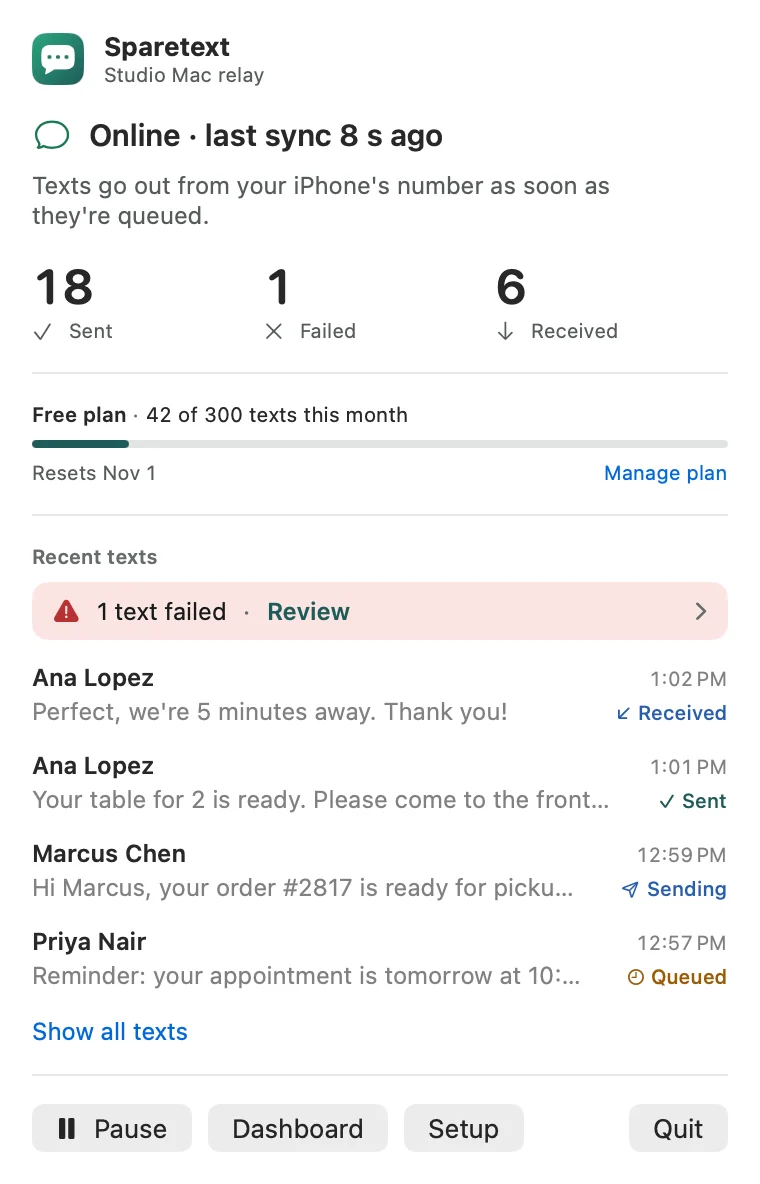
It's signed and notarized by Apple, so it opens like any app you download. An AI agent connected over MCP texts from your iPhone's number this way too. And if you live in a terminal, the same relay comes as a command-line tool: send SMS from the Mac terminal.
What an iPhone can't do
Here's the list we'd want to read before choosing.
- No delivery reports. An iPhone or a Mac tells you sent or failed, never delivered for an SMS. Carriers' delivery reports reach only Android.
- No reading texts on the iPhone alone. Without a Mac, a Shortcuts automation can pass texts on, but iOS makes you pick a sender or a word. There's no "anyone". For every reply, use the Mac.
- No offline alerts. An iPhone goes quiet every time it's locked, so Sparetext sends no phone-offline webhook for it.
- No missed calls, typed texts or history. iOS lets no app read calls or texts. The Mac can share texts you type in Messages and import past ones; the iPhone alone can't.
- No SIM per text. On a dual-SIM Android phone you can pick the SIM for each text. On an iPhone, you can't.
- No carrier name. iOS stopped telling apps who your carrier is, so the app shows your lines and whether each is on 5G or LTE.
- No App Store, yet. You install the iPhone app from a Mac or PC with Sideloadly or AltStore. With a free Apple ID you reinstall it every 7 days, and AltStore can do that for you over Wi-Fi.
Which one should you pick?
- A spare iPhone and a Mac that stays on: the Mac. Fully automatic, replies included.
- A spare iPhone on a charger, no Mac: Shortcut auto-send, plus Send while locked.
- Your everyday iPhone and a few texts: tap to send.
- Lots of texts, nobody around, delivery reports: honestly, an Android phone. Even an old one does the job, as long as it runs Android 8 or newer and takes a SIM.
Start with the Mac, if you have one
On the iPhone, turn on Text Message Forwarding for your Mac. Then get Sparetext for Mac from the download page and pair it in the dashboard under Phones › Add phone › iPhone + Mac relay. No Mac? The same page has the iPhone app and both shortcuts.
iphonemacshortcutssms gateway
Try it with the phone you have
Free for 1 phone and 300 texts a month. Pair it in about two minutes.
Responses
Sign in or create an account to respond.