Send bulk SMS from a CSV file with your own Android phone
Import the spreadsheet, write one text with {{name}} in it, and check what each person gets before it goes. We fed it eight messy files to see what breaks.
Sparetext
7 min read · Nov 27, 2026
You have a spreadsheet of people to text: tomorrow's bookings, this week's pickups, the parents in a class group. You want each of them to get their own text, with their own name and time in it, from the number they already know. And you'd rather not paste 40 numbers into your phone one by one.
You can do it from a CSV file in about a minute, with no code. Sparetext takes the file in the dashboard, fills {{name}} and any other column into the text, shows you each person's words, and your own phone sends them. On 27 November we ran it against a test copy of Sparetext with a simulated Android phone, and fed it eight made-up files, a few of them as messy as the ones people really export.
What you need
- A Sparetext account. Free is 1 phone and 300 texts a month, and every text in a list counts.
- Your phone paired with it: Android with the Sparetext app, or an iPhone through Sparetext for Mac or a Shortcut (the iPhone guide). Campaigns, for big lists, need Android.
- The list saved as CSV. In Excel that's File, Save as, CSV. In Google Sheets it's File, Download, Comma-separated values.
Make the file
One row per person, a header row with column names, and the phone number in a column called phone (or mobile, number, cell, tel and a few more). If none of the names match, Sparetext takes the first column that has a number in it. Every other column becomes something you can put in the text. Here's the one we started with:
name,phone,time
Maya,+1 202 555 0141,10:00
Theo,+1 202 555 0142,11:30
Priya,+1 202 555 0143,14:15
Write numbers with their country code if you can. A number without one is read in your account's country, and the To box says which country it used, so you're not guessing.
Import it and write one text
- Open Messages and press New text.
- Press Import CSV or contacts, above the To box, and pick the file. A note says how many numbers came in and which rows were skipped.
- Write the text with the columns in double curly brackets:
Hi {{name}}, see you tomorrow at {{time}}. Reply YES to confirm.The columns from your file show up as buttons under the box, so you can click them in instead of typing. - Check the preview under the message. It shows the first person's text, and the arrows step through everyone else's.
- Press Send to 3 (or however many you have).
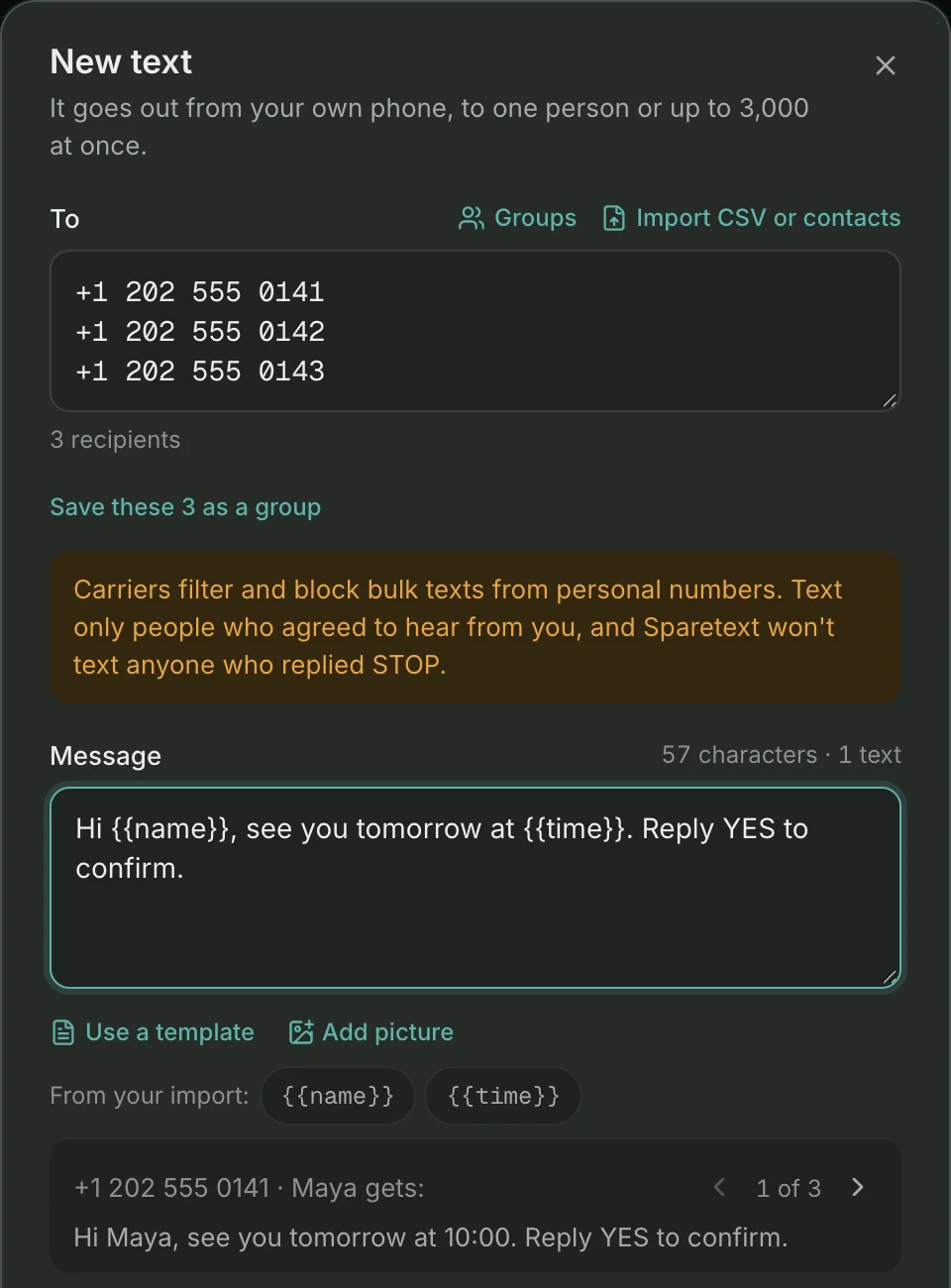
On our test copy, the three texts went out in order, each with its own name and time, and the simulated phone reported all three delivered. It also answered YES to each one, so the replies landed in Messages as three separate conversations. That's the nice part of sending from your own number: people reply to you, like they would to any text from you.
What happened with eight messy files
Real spreadsheets are never as tidy as bookings.csv. So we made the kinds of files that turn up when you export from Excel, an old Windows PC or a list someone kept by hand, and imported each one. Here's what each did:
- Semicolons instead of commas, with the hidden byte-order mark Excel puts at the start and Windows line endings, and the phone in a
Mobilecolumn that wasn't first. Read fine: 2 numbers, names filled. - An old Excel file in Windows-1252, the encoding Excel used before UTF-8, with
JoséandZoëin it. The names came through with their accents. - A hand-made list with an empty line, a note row (
call back later) with no number,(202) 555-0142,+1.202.555.0143and the same person twice. It took 3 people, said "Skipped row 4: no phone number in it", and texted the duplicate once. When a number appears twice, the first row's columns are the ones used. - A blank cell. Theo had no time. The preview said "1 of 2 can't be filled yet", and Send stopped with "{{time}} is empty for +1 202 555 0142. Fill it in the CSV, or take {{time}} out of the text." Nobody gets "see you tomorrow at ."
- A `send_at` column (more on that below), and the same column with a date written day first.
- Numbers Excel had already turned into numbers. This one is the trap, so it gets its own section.
The Excel trap: 1.20256E+10
Type a long phone number into Excel and leave the cell's format alone, and Excel treats it as a number. Microsoft's own page on keeping leading zeros and large numbers (read on 27 November 2026) says it plainly: Excel removes leading zeros and turns large numbers into scientific notation, so math works on them. The plus sign goes too.
So a CSV can end up with 1.20256E+10 where +12025550141 used to be. We didn't run Excel itself for this. We wrote that file by hand, the way it comes out, and imported it:
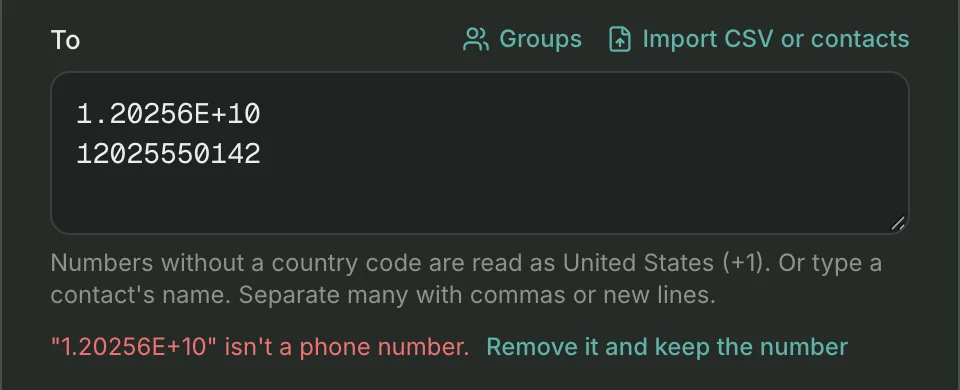
Sparetext refuses it and offers to take it out, and the number without a plus (12025550142) was read as a US number, which it is. What it can't do is bring the lost digits back, because they're not in the file anymore. The fix is in Excel, before you save: select the phone column, Format Cells, Text, then type or paste the numbers again. Or put an apostrophe in front of each one. Microsoft's page says formatting doesn't change numbers already typed, which is why you have to enter them again.
Send each row at its own time
Add a column called send_at (or send time, scheduled_at and similar) and each text goes at its own row's time. Handy for reminders: everyone hears from you an hour before their slot, not all at once at 8am.
name,phone,time,send_at
Maya,+12025550141,10:00,2026-11-28 08:00
Theo,+12025550142,11:30,2026-11-28 09:30
When we imported this, the When choice got a third option, Per row, with "Each text goes at its row's send_at" and the range from first to last. The button changed from Send to Schedule. Times are read in your browser's time zone, and they can be from a minute to 30 days ahead.
Write them as 2026-11-28 08:00. When we wrote one as 28/11/2026 08:00, Schedule stopped and asked for the YYYY-MM-DD form. That's on purpose: 03/11 is March in one country and November in the next, and a reminder that lands eight months early is worse than one that asks.
When the list is big
New text sends up to 3,000 at once. Your phone sends them at its own pace (about 30 SMS parts a minute on Android, which is Android's own limit), so 300 texts take roughly ten minutes. That's fine for people who are expecting to hear from you.
It's not fine for a list of people who haven't heard from you in years. Carriers watch personal SIMs for bulk sending, and a SIM that suddenly texts thousands of strangers gets filtered or blocked. For that, use a campaign: Campaigns, New campaign, Choose a CSV file. You match the phone, name and last event columns, and it sends from your Android phones slowly on purpose, starting at 100 texts a day per SIM, and asks old numbers first. We only tried its list step this time (both test files read, accents included), so read how campaigns keep the SIM safe for the rest.
What it can't do
- It can't fix numbers Excel already rounded. Format the column as Text first.
- It sends from your phone, so it's as fast as your phone is. It's not for 50,000 texts by lunchtime; a registered provider is.
- It doesn't take .xlsx files. Save as CSV.
{{name}}with an emoji or a name in another alphabet makes that text UCS-2, so it holds 70 characters instead of 160. The counter above the box shows it as you type, and why one emoji can double your SMS shows why.
Or do it from code
Once the text looks right, the Copy as code button at the bottom of New text gives you the same send as curl, Node.js or Python, with your key read from SPARETEXT_API_KEY. If the CSV comes out of another program every morning, sending SMS from Python has a tested script that reads it and sends each row its own text.
Try it with three rows first, with your own number in one of them, and see what lands on your phone. Sign up free, pair your phone, and import the file.
bulk smscsvexcelandroidsend smstutorial
Try it with the phone you have
Free for 1 phone and 300 texts a month. Pair it in about two minutes.
Responses
Sign in or create an account to respond.